How to connect Bluetooth hearing aids to computer? Then follow our instruction and connect your Bluetooth hearing aids to computer.
In today’s tech-driven world, how to connect Bluetooth hearing aids to computer have revolutionized how individuals with hearing loss experience sound. Connecting these advanced devices to your computer opens up a world of enhanced audio clarity and accessibility, making everyday tasks and entertainment more enjoyable.
Understanding how to connect Bluetooth hearing aids to computer
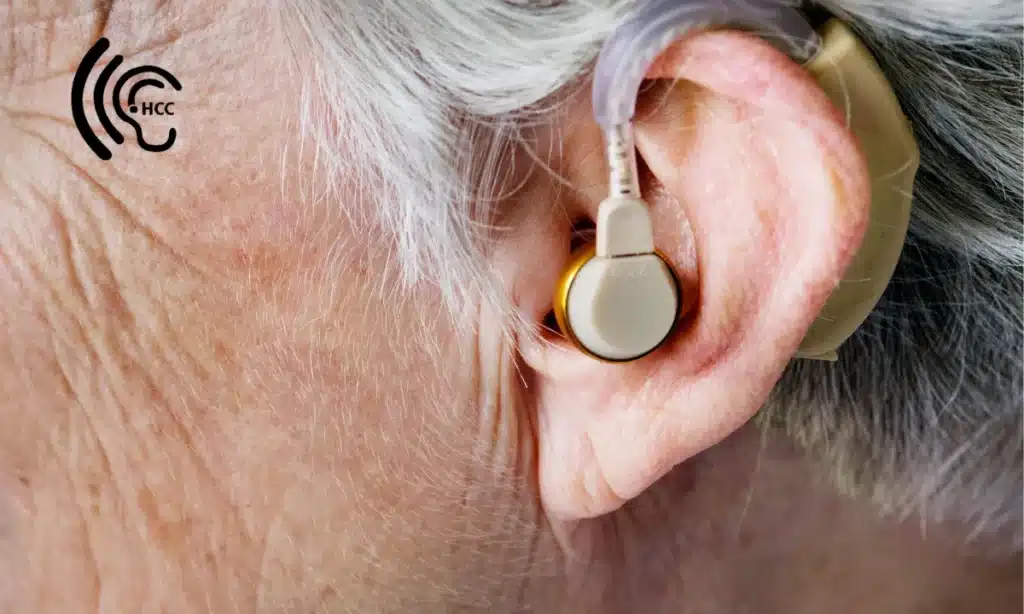
how to connect Bluetooth hearing aids to computer work by wirelessly transmitting sound from devices like computers, phones, and TVs directly to the hearing aids. These devices are equipped with Bluetooth technology, allowing for seamless connectivity and superior sound quality. Key features include noise reduction, customizable sound profiles, and compatibility with various electronic devices.
Why Connect Hearing Aids to Your Computer?
Connecting your hearing aids to your computer can vastly improve your audio experience. Whether you’re on a video call, watching a movie, or listening to music, the direct connection ensures clear and enhanced sound. It also makes communication easier, especially during virtual meetings or online classes, where clear audio is crucial.
Preparing for Connection
Before connecting your hearing aids, check if they are Bluetooth compatible. Consult your hearing aid’s user manual or contact the manufacturer. Ensure your computer’s Bluetooth is functioning correctly and updated to the latest version.
Step 1: Enable Bluetooth on Your Computer
Windows OS
- Go to Settings.
- Select Devices.
- Click on Bluetooth & other devices.
- Turn on Bluetooth.
macOS
- Open System Preferences.
- Select Bluetooth.
- Turn on Bluetooth.
Step 2: Put Hearing Aids in Pairing Mode
Refer to your hearing aids’ manual for specific instructions, as the method to enter pairing mode can vary. Generally, this involves holding down a button on the hearing aids until a light indicator flashes or a tone sounds.
Step 3: Pairing Hearing Aids with Windows OS
- In Bluetooth & other devices settings, click on Add Bluetooth or other device.
- Select Bluetooth.
- Choose your hearing aids from the list of available devices.
Step 4: Pairing Hearing Aids with macOS
- In Bluetooth settings, find your hearing aids under Devices.
- Click Connect next to your hearing aids’ name.
- Follow any prompts to complete the connection.
Step 5: Testing the Connection
Once paired, test the connection by playing audio on your computer. Adjust settings in your hearing aids or computer’s audio settings if necessary.
Troubleshooting Common Issues
Connection Problems: If your hearing aids do not connect, ensure they are in pairing mode and within range. Restart your computer and hearing aids if needed.
Audio Quality Issues: Poor audio quality can result from interference or low battery. Ensure your hearing aids are fully charged and reduce any nearby electronic interference.
Compatibility Concerns: Verify that your computer and hearing aids are compatible with each other’s Bluetooth versions. Updates to your computer’s Bluetooth driver may resolve compatibility issues.
Maintaining Your how to connect Bluetooth hearing aids to computer
Regular cleaning and maintenance are essential for optimal performance. Keep your hearing aids free from earwax and moisture. Regularly update the firmware and software to ensure compatibility with new devices.
Advanced Tips for Optimal Use
Using Hearing Aid Apps: Many hearing aids come with companion apps that offer additional controls and customization. These apps can enhance your listening experience by adjusting sound profiles and providing updates.
Customizing Sound Profiles: Tailor the sound settings to your preference using the hearing aid’s software or app. This customization can significantly enhance your audio experience.
Integrating with Other Devices: Besides computers, you can connect your hearing aids to smartphones, tablets, and TVs for a comprehensive audio experience.
Personal Stories and Experiences
Users often share how connecting their hearing aids to their computers has improved their lives. From clearer communication in virtual meetings to enjoying movies without subtitles, the impact is profound.
Expert Insights
Audiologists recommend ensuring that your hearing aids are regularly updated and well-maintained. Staying informed about new technological advancements can also enhance your usage experience.
Conclusion
How to connect Bluetooth hearing aids to computer to your computer is a straightforward process that offers immense benefits. From improved audio quality to enhanced communication, embracing this technology can significantly improve your daily life.
FAQs for how to connect bluetooth hearing aids to computer
How do I know if my hearing aids are Bluetooth compatible?
Check the user manual or contact the manufacturer to confirm Bluetooth compatibility.
Can I connect multiple devices simultaneously?
Some hearing aids allow multiple connections, but it varies by model. Refer to your hearing aids’ manual.
What should I do if my hearing aids don’t connect?
Ensure they are in pairing mode, Bluetooth is enabled on your computer, and both devices are within range.
How can I improve the sound quality?
Keep your hearing aids clean, ensure they are fully charged, and reduce electronic interference nearby.
Are there any risks associated with using how to connect Bluetooth hearing aids to computer?
There are minimal risks, primarily related to battery life and occasional connectivity issues, but these can be managed with proper maintenance and updates.